
How to Download Transactions From Your Statements
StatementOrganizer Team · July 5, 2026
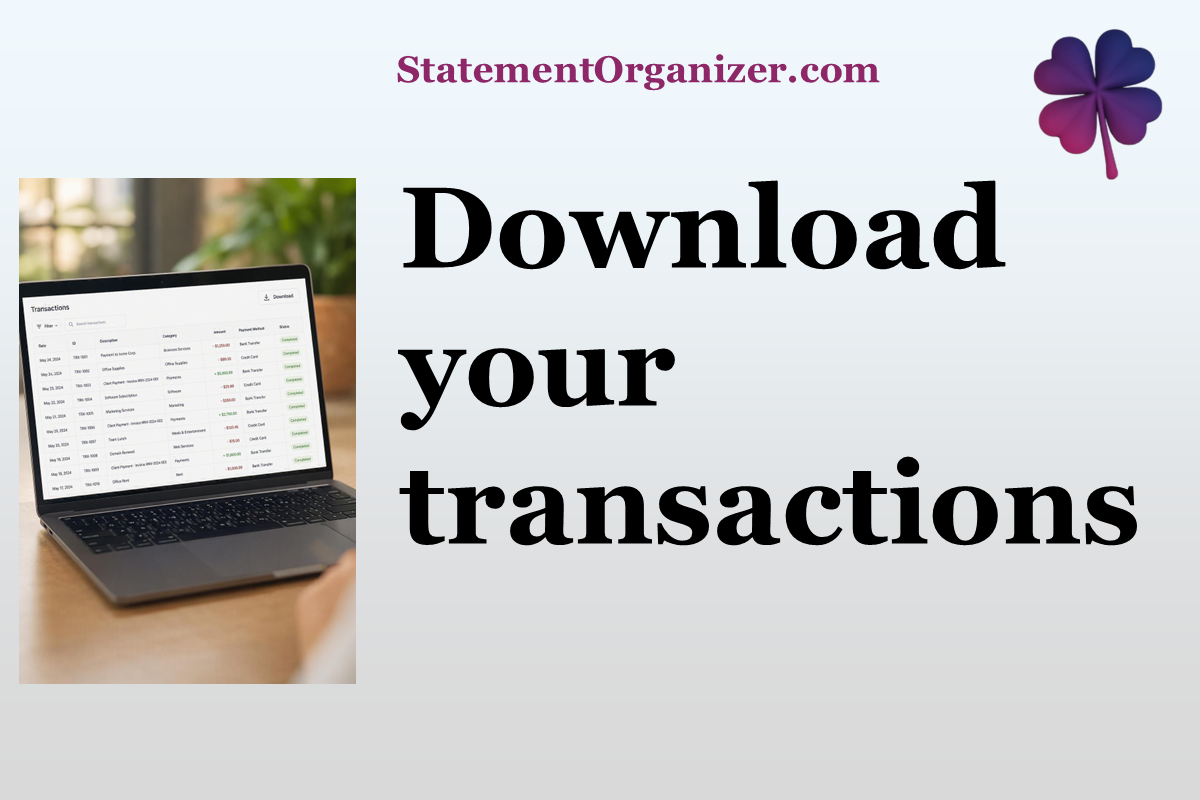
Need your transactions in a spreadsheet for analysis? StatementOrganizer makes it easy to collate and download transactions from across your accounts! You can even download and export to QuickBooks and other software!
How to download your transactions:
- Open Transactions from the menu at statementorganizer.com.
- Use the filters to narrow things down first — search by description, choose one or more categories, pick specific entities or accounts, or set a date range. There's a handy reset icon if you want to start over.
- Once your list looks right, click Export and choose your preferred format.
- Your file downloads instantly, ready to open in Excel, Google Sheets, or your accounting software.
Every transaction StatementOrganizer extracts includes the date, description, amount, category, and linked account — all pulled automatically from your uploaded statements, so there's no manual re-typing involved.
When you apply filters, you'll also see a handy subtotal shown right next to your opening balance, so you can quickly check totals before exporting — great for confirming numbers match what you expect.
Whether you're preparing for tax season, reconciling a budget, or just want your data outside StatementOrganizer for another tool, exporting takes just seconds.
Give it a try: head to Transactions on StatementOrganizer, apply your filters, and download exactly the data you need.
Comments (0)
Sign in to join the discussion.